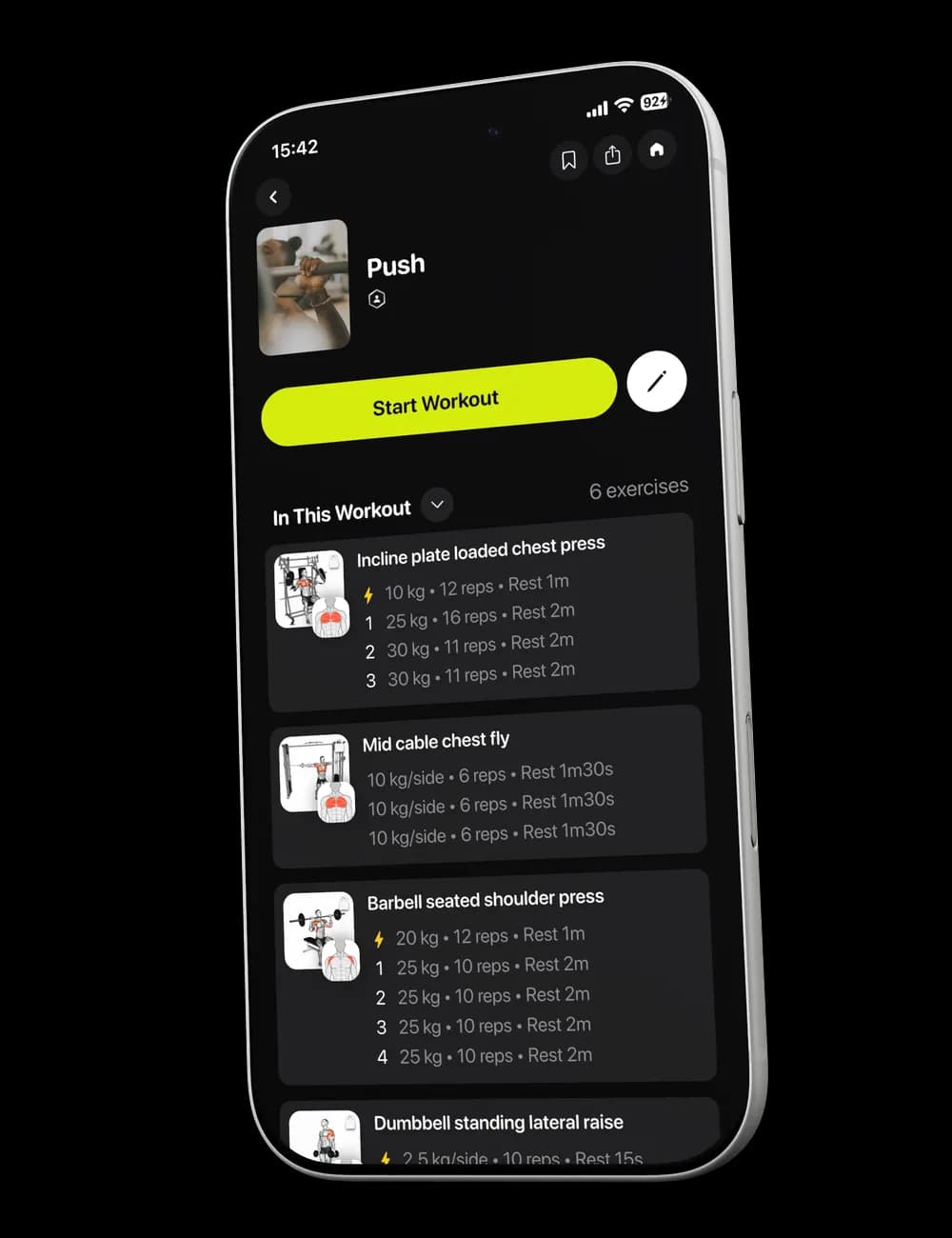
A good workout still has to survive the gym you walk into: occupied equipment, limited time, or an exercise that does not fit today. Add, swap, or reorder only what is blocking the session so you can adapt without rebuilding the whole workout.
Step 1: Add another exercise
In the active workout, open Overview and tap Reorder on an exercise card. From Edit Workout, tap Add Exercise(s).


Use this when you want to include another movement in the current session.
Read Add an exercise to your workout for the complete steps.
Step 2: Swap an exercise
Tap Swap on the exercise card, then use Select Exercises to choose another movement.


Use this when the current exercise or its equipment does not fit today’s session.
Read Swap an exercise for the complete steps.
Step 3: Reorder the session
Tap Reorder to open Edit Workout, then move exercises into the order you want and tap Save.

Read Reorder exercises in your workout for the complete steps.
Step 4: Review the changed workout
Return to Overview and check the exercise list and visible set details. Adjust the log so it matches what you perform as the session continues.