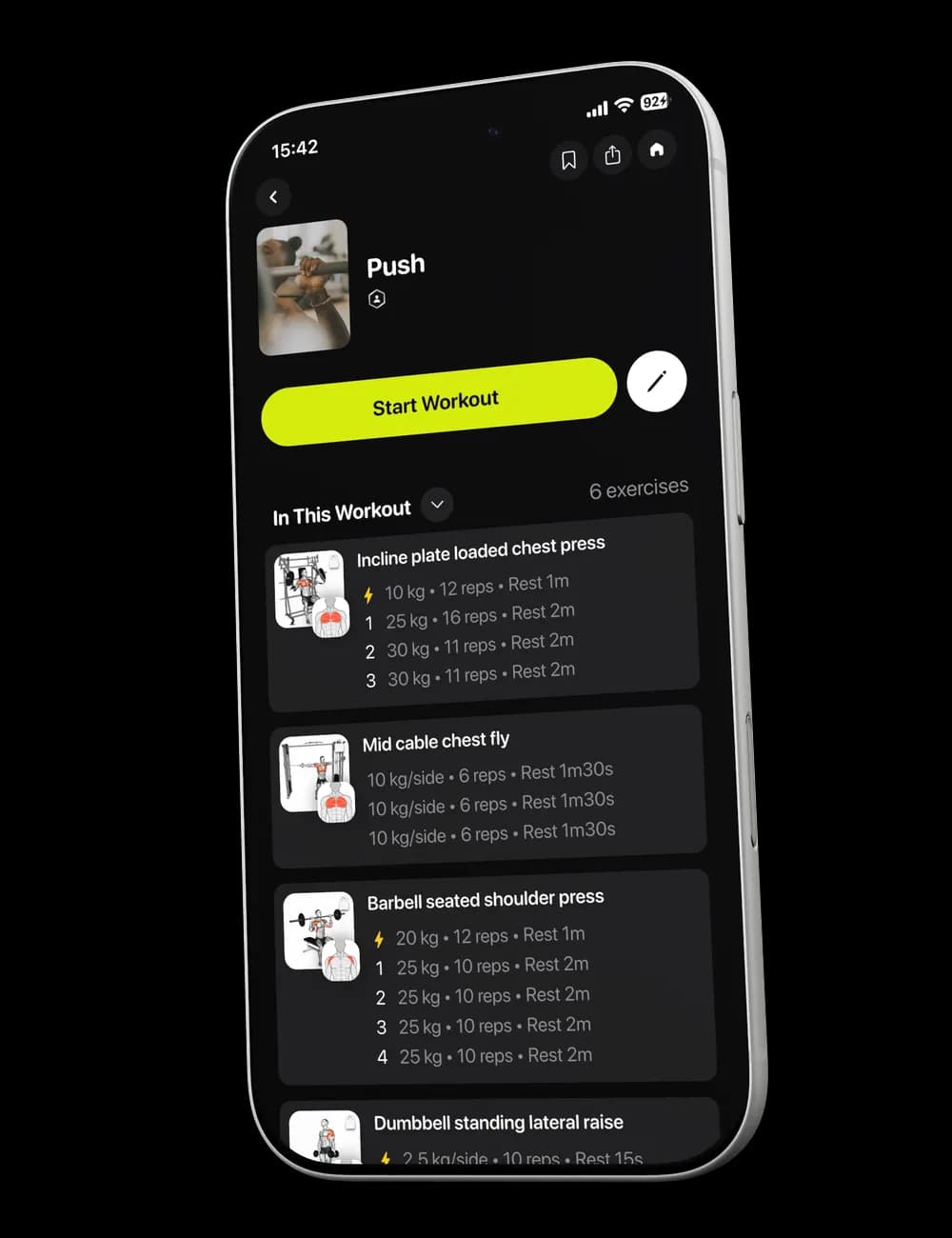
The planned order is often the first thing a busy gym disrupts. If one station is occupied while another is open, reorder the workout and keep moving instead of letting a single exercise stall the session.
Step 1: Open Edit Workout
From the active workout, switch to Overview. Find an exercise card and tap Reorder.

The Edit Workout screen shows every exercise in the current session.
Step 2: Move an exercise
Press and hold the drag handle beside an exercise, then move it to the position you want. Repeat this for any other exercise that needs to move.
Step 3: Review the full list
Check the updated order from top to bottom. You can also use Add Group or Add Exercise(s) if the session needs another change.
Step 4: Save the order
Tap Save. Return to Overview and confirm that the exercises appear in the order you expect.