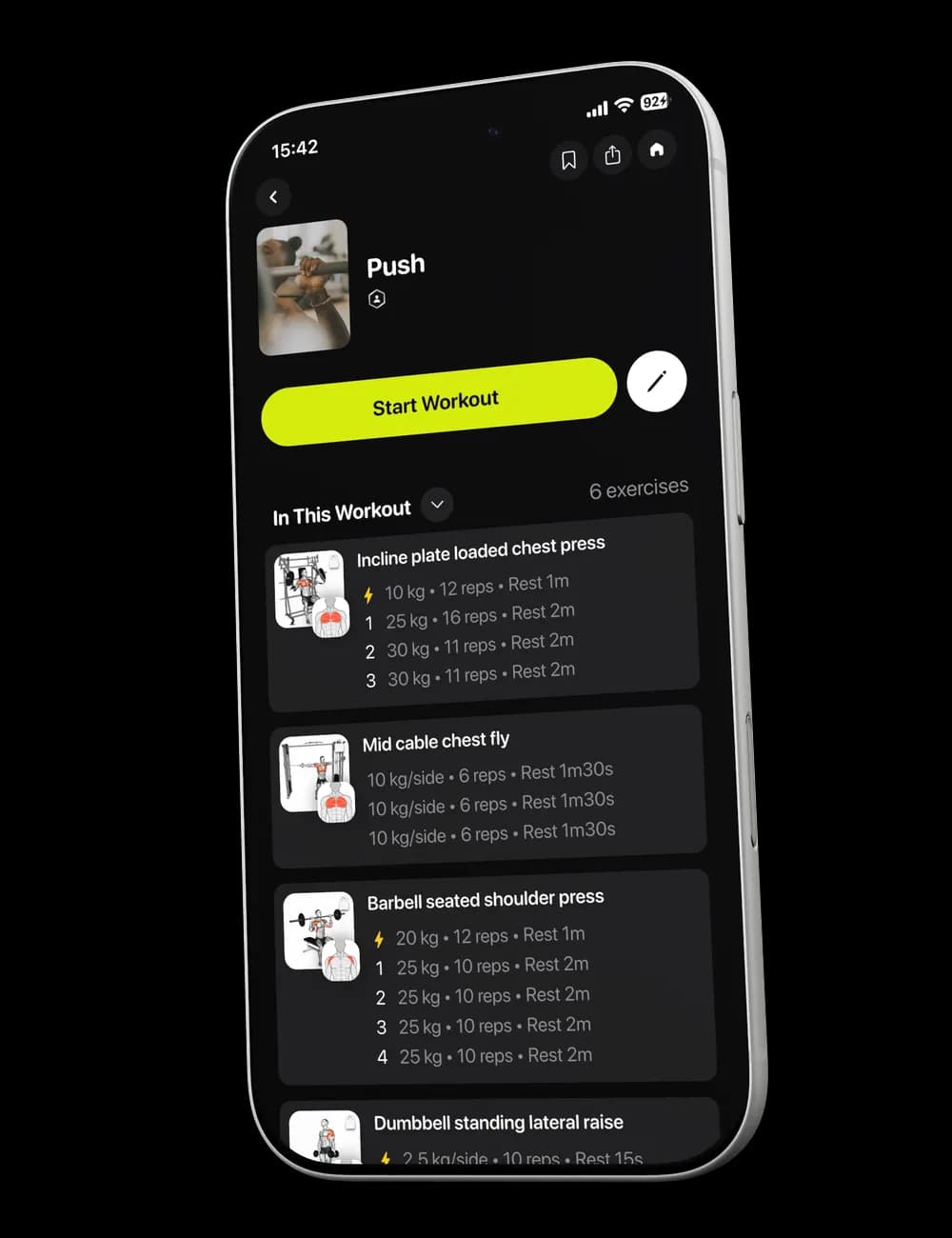
A new workout app should not feel like another workout. If you are unsure what to set up now and what can wait, follow this shortest path from opening Nudges Me to completing and reviewing your first session.
Step 1: Complete your fitness profile
During setup, answer the questions shown about your main fitness goal, strength-training experience, training frequency, workout duration, and preferred split.
Choose answers that reflect what you can do consistently. You can review related preferences later instead of trying to make every choice perfect on the first pass.
Step 2: Set up where you train
Choose the gym setup that best matches where you train most often. Then review the equipment listed in your Gym Profile.
You can update the profile later when you train somewhere else or your available equipment changes.
Step 3: Review your next workout
Open Home and find Next Workout. The card shows the session name and its visible exercise, set, and duration summary.

Tap the card to open the preview. Scroll through In This Workout before you start.
Step 4: Start and log the session
Tap Start Workout. Use Focus for the current movement or timed block, and Overview to see the full workout.


Update the weight, reps, and effort fields to match what you perform. Tap the set checkmark when the entry is correct.


Step 5: Customize when today is different
An active workout includes controls to add, swap, or reorder exercises. Use them when the current list does not fit your equipment or the order you want to follow.
These changes are optional. You can continue with the workout as shown when it already fits your session.
Step 6: Finish and review your workout
Check your set entries, then tap Finish when the session is complete. Follow the confirmation shown in the app.

Open Me and select History to find the completed workout. You can also use Progress for a broader view of recent activity.