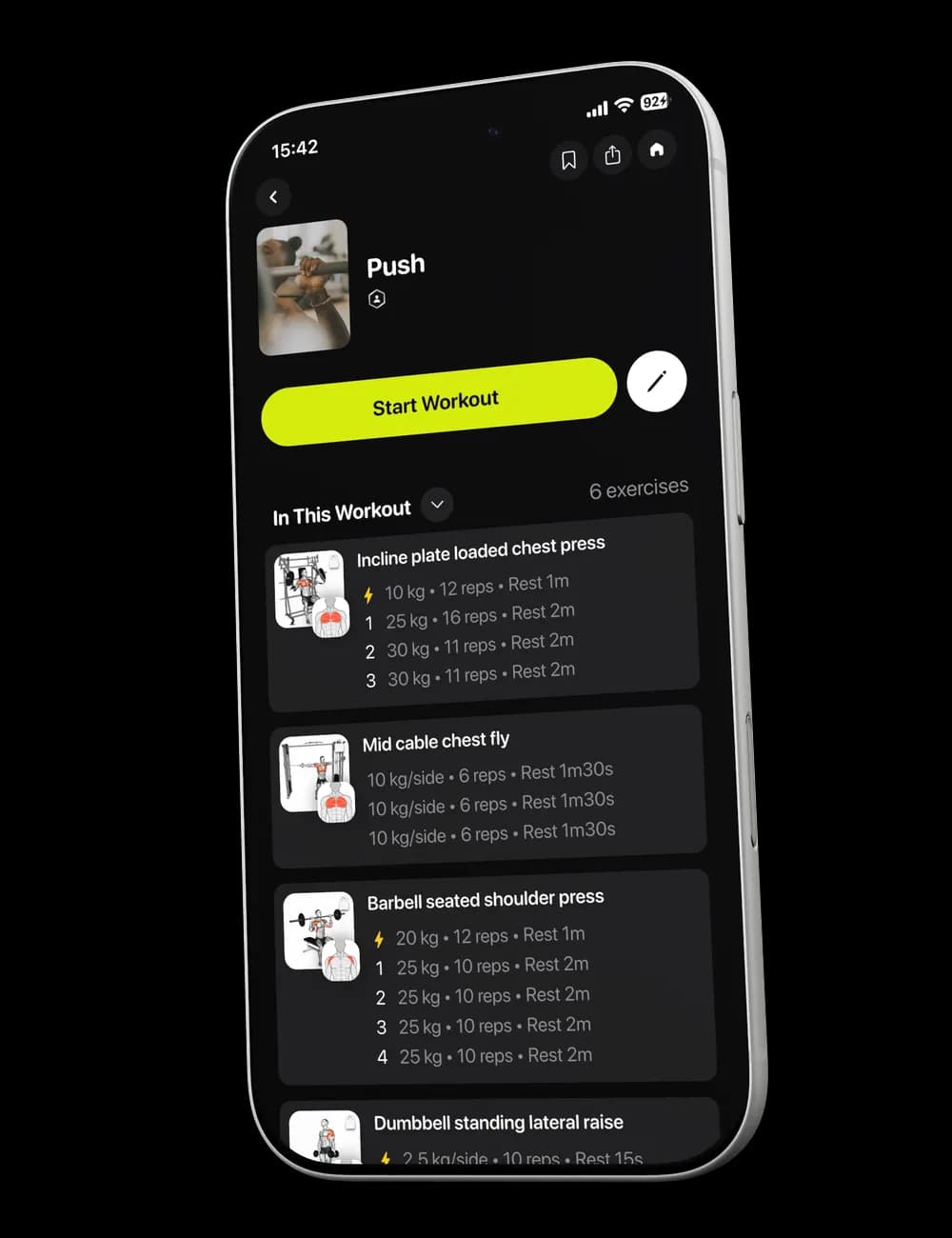
A few weeks later, memory is rarely precise enough to tell you what you lifted, how many sets you finished, or when you trained. Open History when you need the saved session rather than an estimate of what probably happened.
Step 1: Open History
Tap Me in the bottom navigation. Select History, then stay on the Workout tab.

The list shows completed workouts with the workout name, date, duration, and other visible summary information.
Step 2: Find a workout
Scroll to the date you need. Use the workout name and date together when several sessions have similar names.
Tabs such as Plan and Unsynced contain different records, so return to Workout when you are looking for a completed session.
Step 3: Open the workout details
Tap a workout in the list. The detail page can show duration, estimated kilocalories, volume, number of exercises, set and rep summaries, and exercise-level information.
Scroll to review the full record available for that session.
Step 4: Use Progress for recent summaries
Tap Progress in the bottom navigation when you want a broader summary rather than one workout. Available cards can include workout history, training duration, trained muscles, total volume, and sets by muscle group.
The exact cards and time ranges depend on the data currently available in your account.