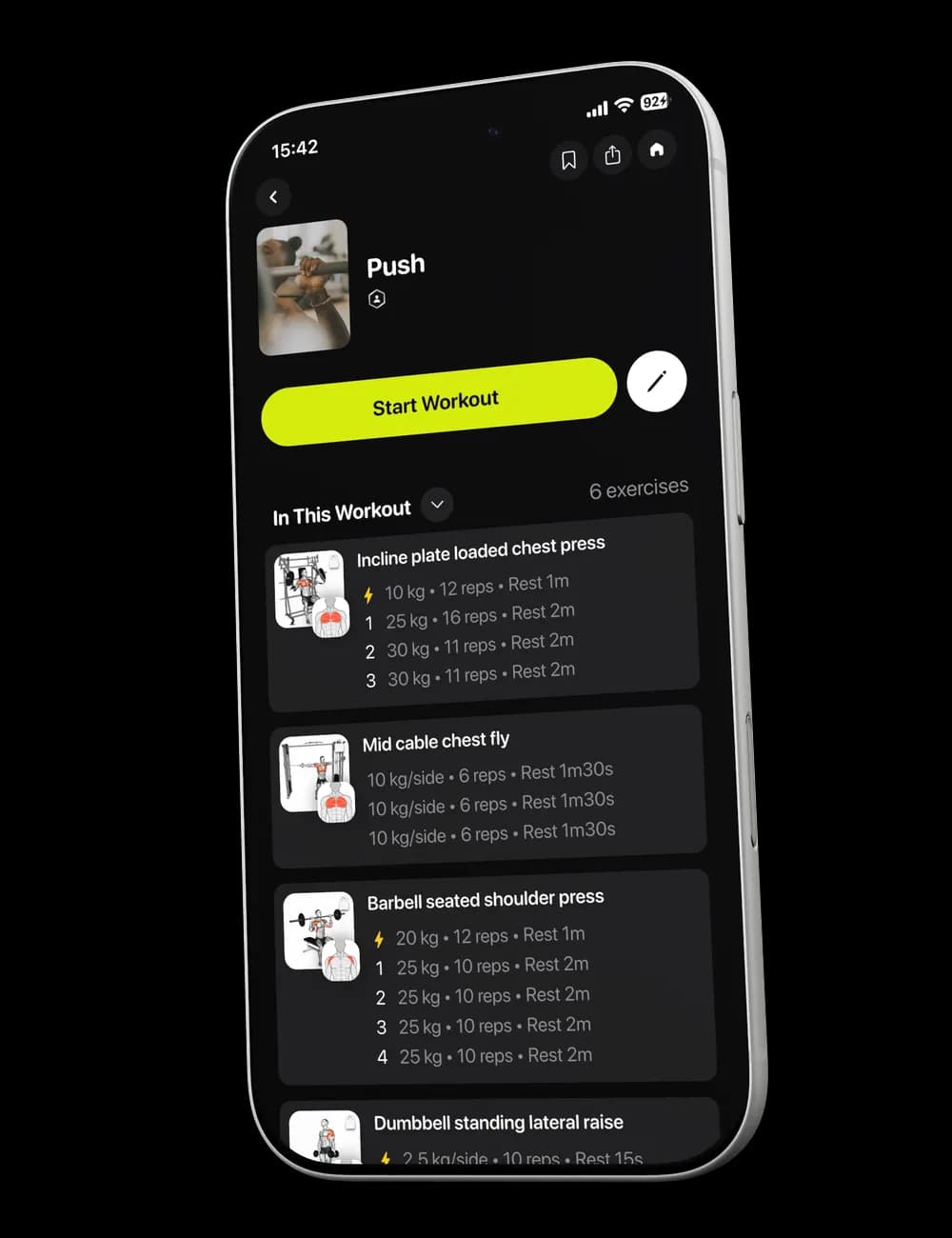
When you do not know what comes next, deciding can take momentum away before the workout begins. Use Home to find the next session, then open My Schedule or Calendar when you need to see how it fits into the days ahead.
Step 1: Find the next workout on Home
Open Home and locate Next Workout. The card shows the workout name and its visible exercise, set, and duration summary.

Tap the card when you want to review the full workout preview.
Step 2: Review other available workouts
Swipe through the workout cards on Home when more than one session is available. Check the name and target muscles before opening a session.
Use Reorder only when you want to change the visible workout order. Review the full list before tapping Done.
Step 3: Open the schedule
If My Schedule appears on Home, tap Show All to open Calendar. Select a date to see the workouts listed for that day.
Calendar distinguishes scheduled, finished, and skipped items with the status shown in the app.
Step 4: Preview a scheduled workout
Tap a scheduled workout or use its menu and choose View Workout. Review the workout name, exercises, and date before taking another action.