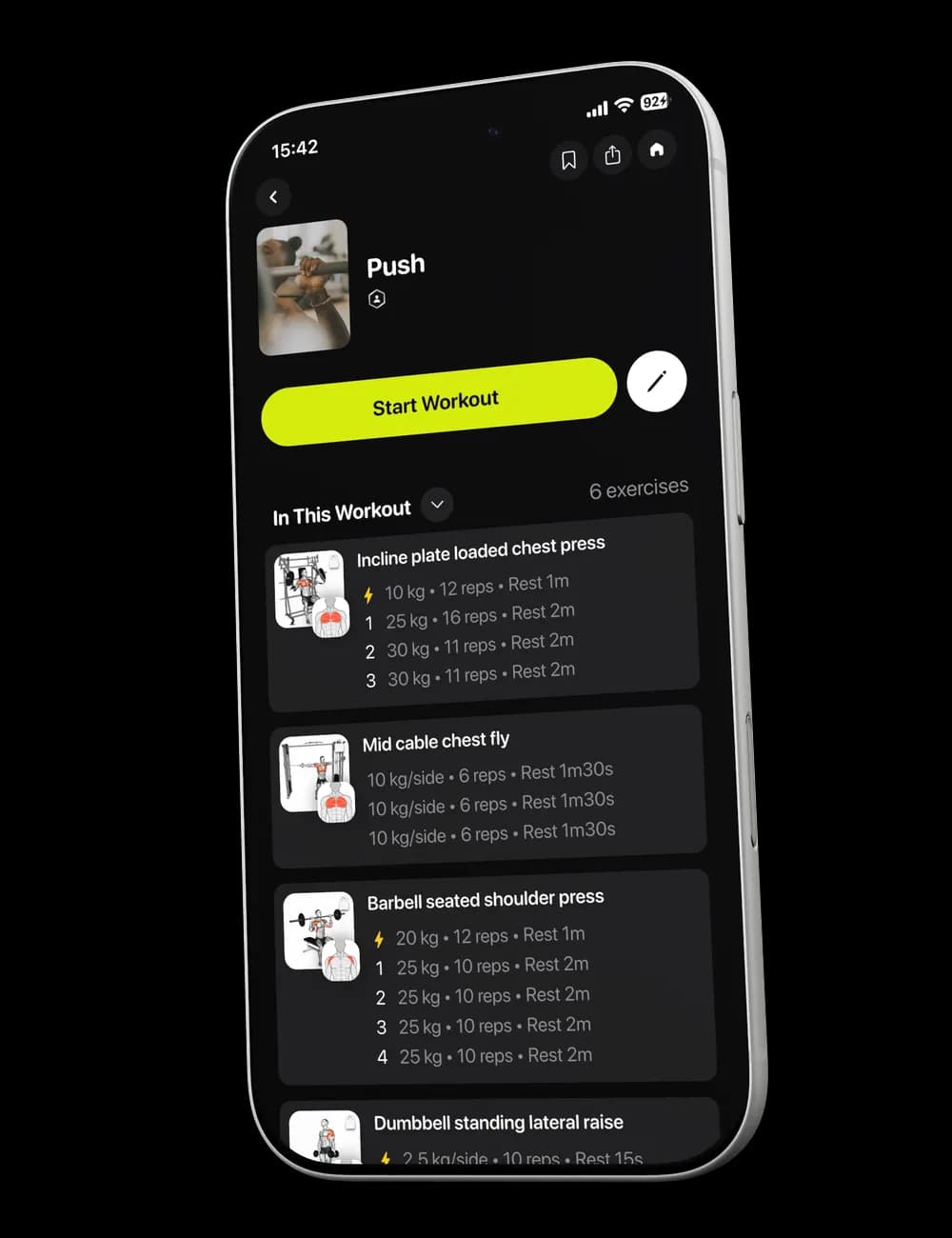
The right rest can change once the workout begins. If the next set arrives before you feel ready, or a long pause is breaking your rhythm, adjust the timer without leaving the workout.
Step 1: Find the rest row
Open Overview during the workout. In the exercise card, find the rest row shown between sets, such as Rest 1:00.
Step 2: Open the rest editor
Tap the rest duration. The editor shows quick presets and a time field for a custom duration.

Step 3: Choose the duration
Select a preset such as 1 min or 2 min, or enter the duration in the time field.
Enable Apply Forward only when you want the same rest duration applied to the later eligible sets shown in the workout.
Step 4: Save the change
Tap Done and check the rest row in Overview. The new duration should be visible before you continue.