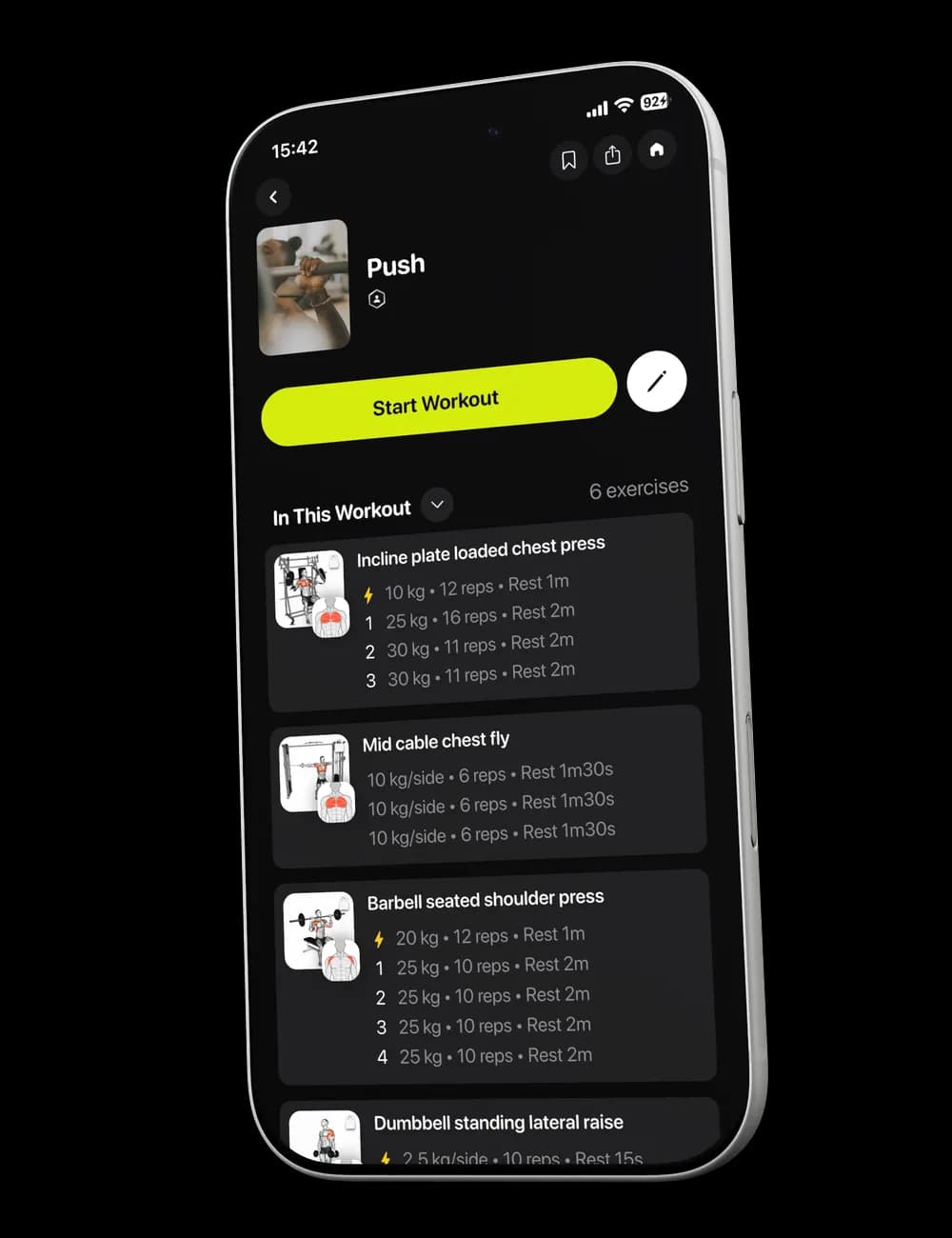
A workout can be planned before you arrive, but the set happens in real time. When the weight, reps, or effort differs from what was shown, update the row so your history records what you actually did, not what you expected to do.
Step 1: Find the set
Open Overview during the workout and expand the exercise you are performing. Locate the set row you want to update.

Step 2: Change the weight
Tap the weight field and enter the load you used. Keep the unit shown in the app in mind when entering the value.
Step 3: Change the reps
Tap the reps field and enter the number you completed. Some exercises may show a per-side value; follow the label shown on the row.
Step 4: Record effort when available
Tap effort and choose the option that best matches the completed set. If you are unsure, leave the field unchanged rather than guessing.
Step 5: Complete the set
Review the row, then tap its checkmark. If you notice a mistake later, reopen the completed row and correct it.